Your Battery, Without Opening the App
Unplugged 4.2 is out now. If I had to sum it up in one line, it puts your battery where you already look.
When I started Unplugged, the part I loved most was how glanceable it was on Apple Watch. Raise your wrist, see your iPhone's battery, move on. No app to open, nothing to tap. 4.2 takes that same feeling and brings it to the iPhone itself.
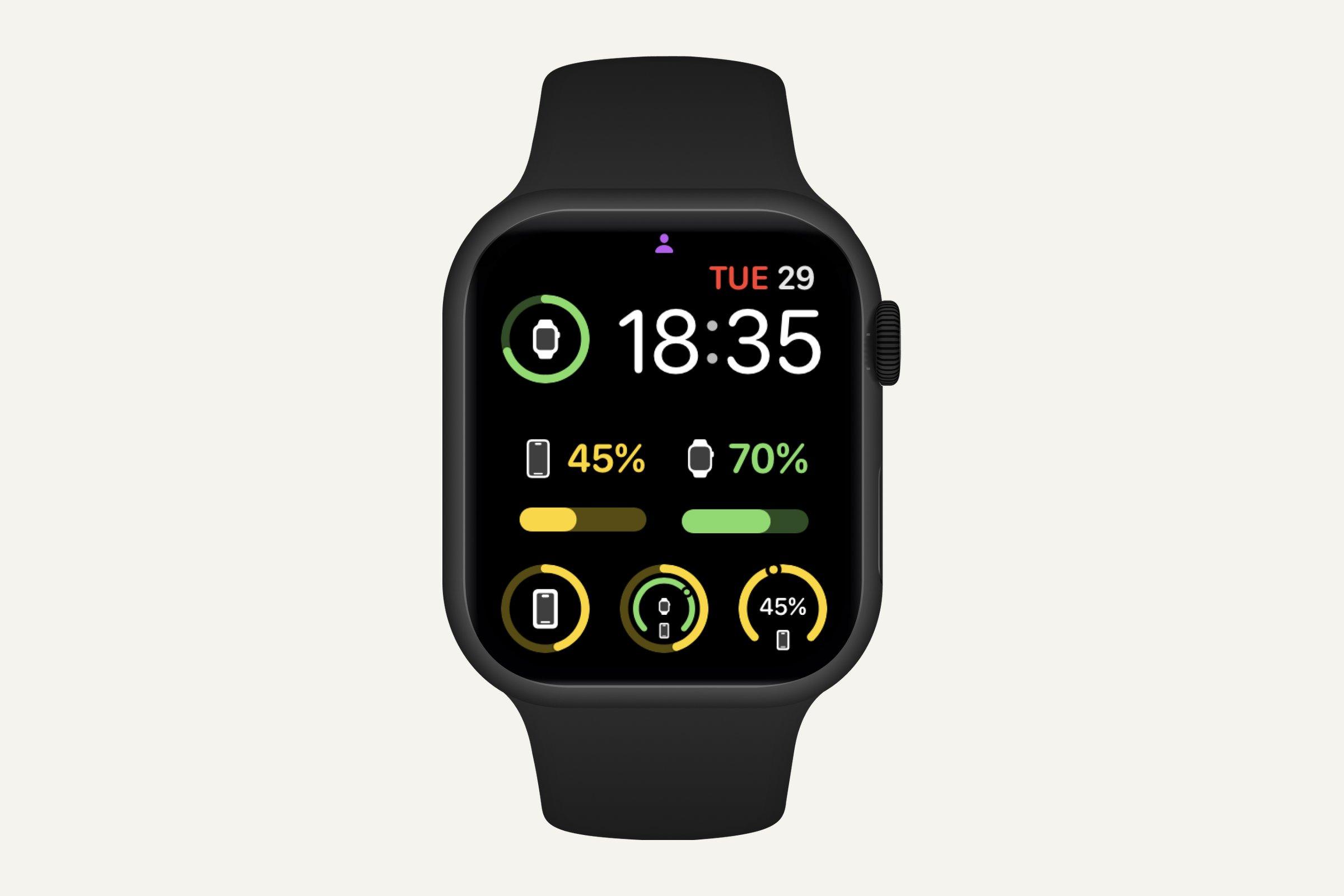
I know what you're thinking. You can already see your battery on your phone. It's right there in the corner. But that number is only the start. The interesting parts, like the forecast, your battery history or your agenda, always lived inside the app. Now they don't have to.
Widgets
I've always liked apps that do their work without getting in the way. They're just there when you want them, when you need them, and they solve a problem. Widgets are exactly that.
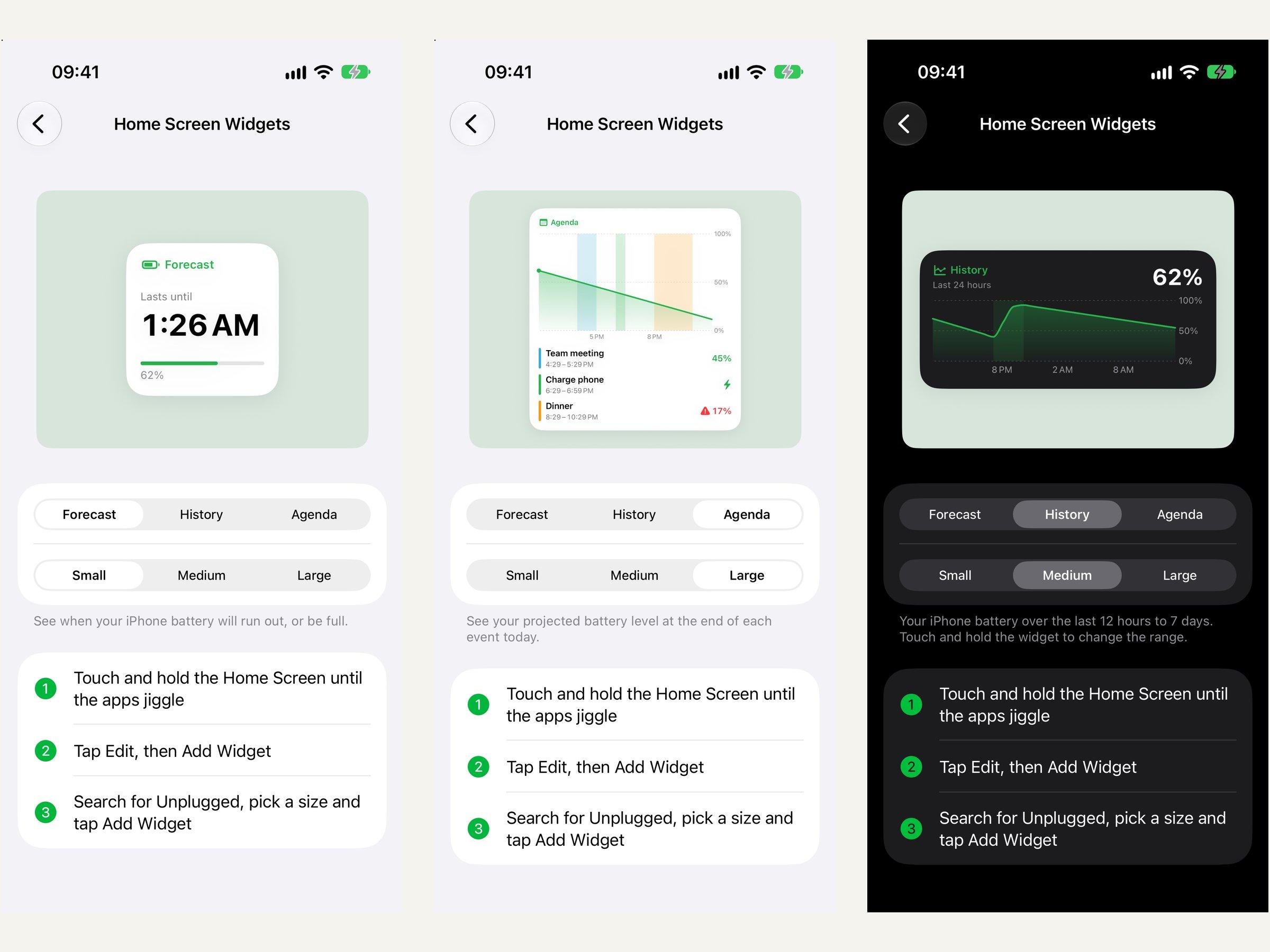
There are three of them. Forecast shows when your battery will run out, or when it'll be full. History shows how your day went. Agenda shows how much battery you'll have left after your next meeting. They come in every size, from small to extra large, and there's a step-by-step guide in Settings if you've never added a widget before.
On the Home Screen, I think they're just nice to look at. They blend in with the rest of your widgets instead of shouting at you.
But the ones I'm the biggest fan of are on the Lock Screen. Being able to look at the small one and see, okay, I have around 11 hours left for today, is really cool. And that's the whole point of Unplugged. It's not about seeing your battery. It's about giving that number meaning. What does 63% actually mean for the rest of your day? Will it last until you're home? That's the context I want to add, and widgets are the most direct way to do it.
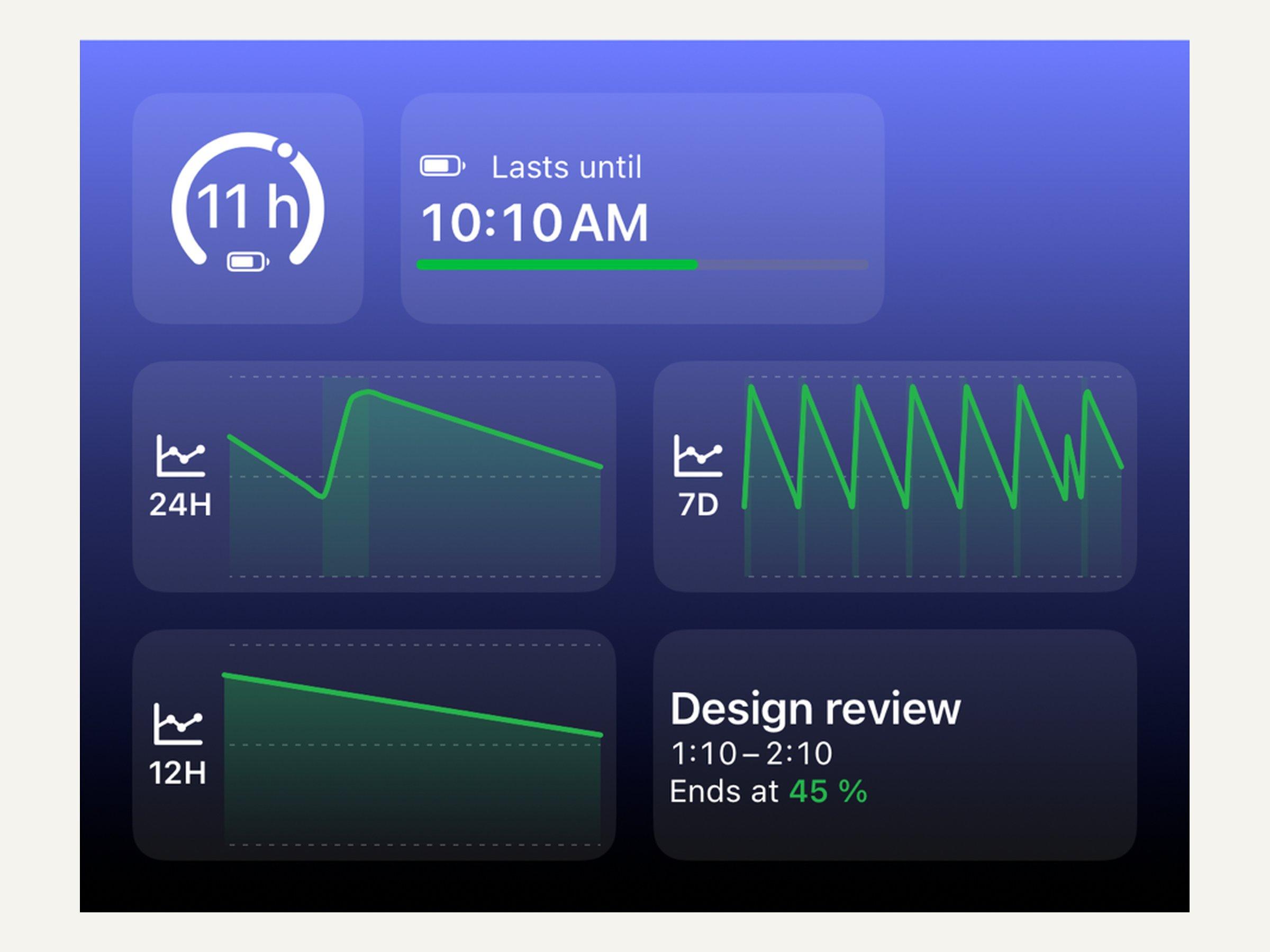
This also makes the app feel more complete for people who don't use an Apple Watch. Until now, a lot of the glanceable side of Unplugged lived on the wrist. If you only have an iPhone, you now get that too.
A better forecast
The forecast is an estimate. It uses a machine learning model that learns from how you use your phone and gets better over time. In 4.2 it got a lot better: the time until full and the low-battery estimates are more accurate.
It's still an estimate, though, and I want it to keep getting closer to the real thing. This is an ongoing project, not something I'll call done.
Every battery in one place
The Batteries card on the Dashboard now shows your AirPods, Apple Pencil, keyboards and other accessories, right next to your iPhone and Apple Watch.
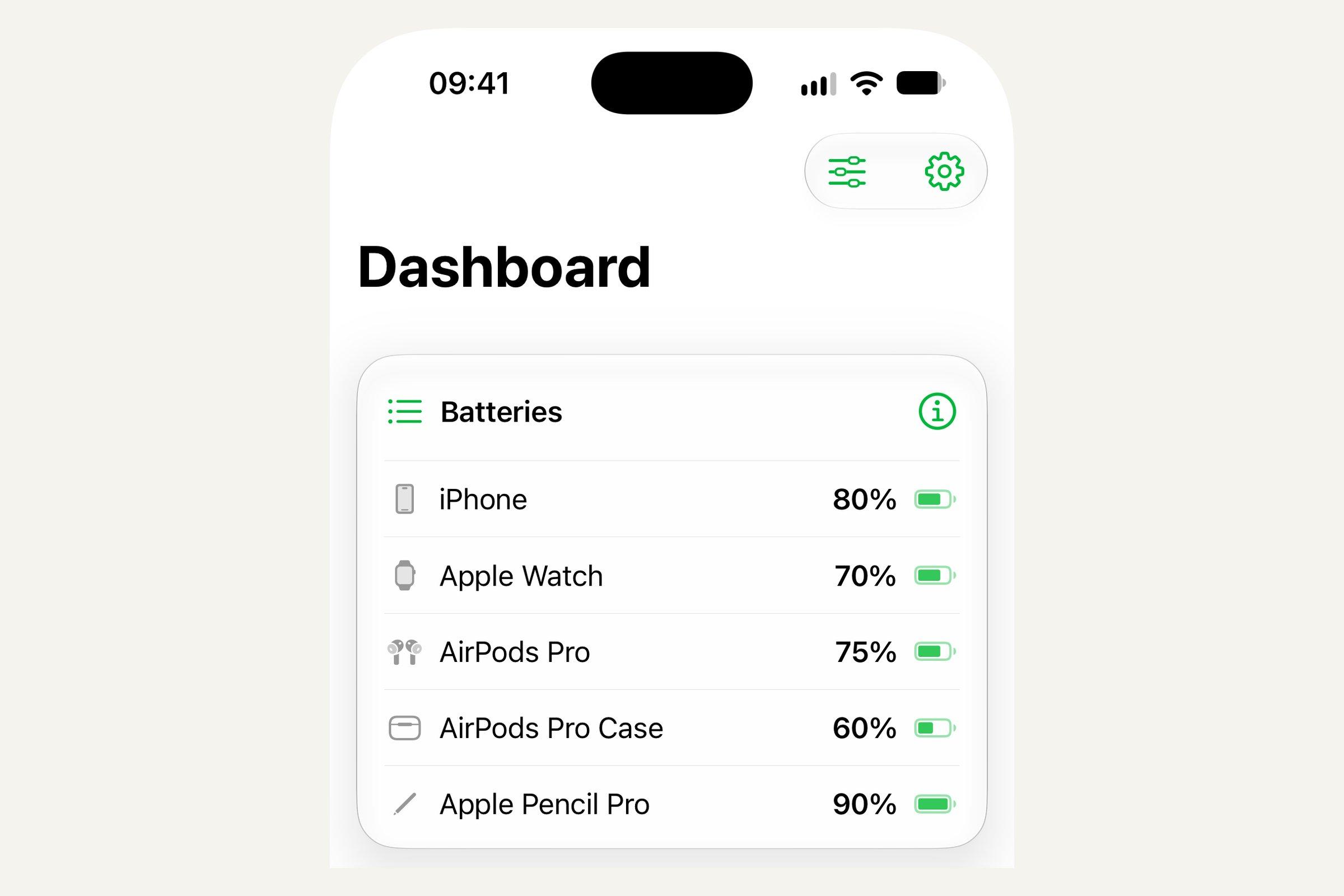
Your Apple Watch battery on iPhone is also a lot more accurate now. It's exact to 1%, and it shows that the watch is charging right away.
I'd love to get the iPhone's own reading that precise too. Right now that's a system restriction. But there are always ways to find things, so let's see how that changes in the future.
Where this is going
What I like most about this update is that it brings Unplugged closer to what I want it to be in the long run: a hub for everything related to battery life.
Battery is always there. We don't think about it much, and it only really matters when you don't have it. So I think it's nice to just have it under control and not have to think about it at all.
Someday I'd like that hub to be complete, with the Mac, the iPad and any other device you can put in there.
A small sneak peek
I'm already looking at the next update and experimenting with ideas. If everything goes according to plan, and I wouldn't bet on it just yet, 4.3 might be about battery health. I found some interesting information on how this could be done, and I'm looking at ways to bring it into the app. No promises. We'll see how it goes.
In the meantime, if you only try one thing, put the Forecast widget on your Lock Screen and let me know how it works for you. You can find the app on X at @Unplugged_App, or me at @chris_iosdev.
Written by Christian Skorobogatow
New features. No spam.
Get notified about new releases and behind-the-scenes updates. Unsubscribe anytime.